
Power Apps provides a powerful way to build business applications quickly, and one of its essential components is the data card.
If you’ve ever worked with forms in Power Apps, you’ve already encountered data cards—even if you didn’t realize it.
They are the building blocks of an edit form control, and they represent individual fields from the data source.
What Is the Power Apps Data Card?
A data card is essentially a container that holds everything related to a single field from the data source (Dataverse table, Sharepoint list…).
When you add an edit form control and map it to a table (for example, the Contacts table), each column in that table becomes a data card in the form.
Inside each data card, you’ll typically find:
- Star element: Indicates whether the field is mandatory.
- Error message: Displays validation errors when saving the form.
- Data card value: The actual input field where users type or select data.
- Title: The label that describes the field.
By default, every data card includes these elements, but you can customize them extensively.
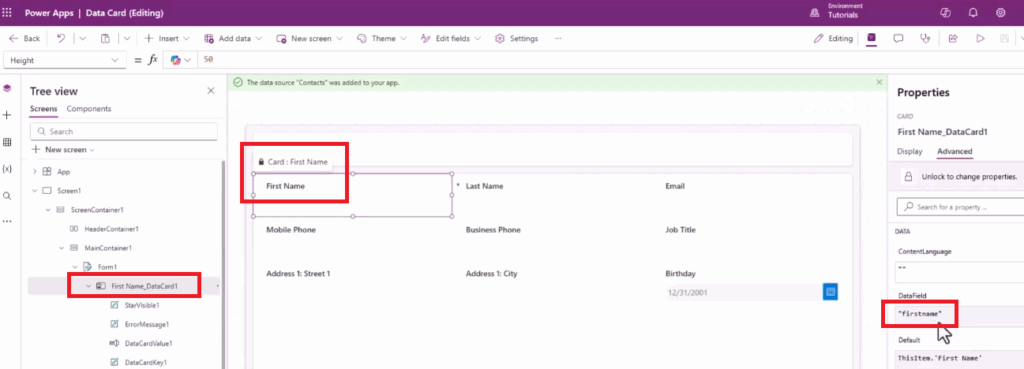
How Data Cards Map to the Data Source
Each data card is tied to a specific field in the Data Source(e.g. Dataverse table). For example:
- A card mapped to the First Name column will show
DataField = "firstname"in its advanced properties. This is the logical name of the column in a Dataverse table. - The Default property of the card references
ThisItem.FirstName, ensuring it pulls the correct value from the record. - The input control inside the card (like a text box) maps to
Parent.Default(in the Default property), meaning it inherits the default value from the card itself.
This logical mapping ensures that when you submit the form, the data flows correctly into Dataverse.
Adding a Save Button
To make your form functional, you need a Save button. Here’s how it works:
- Insert a button and name it
ButtonSave. - Set its formula to:
CodeSubmitForm(Form1); ResetForm(Form1)By setting the form’s DefaultMode to New, you ensure that each submission creates a new record rather than editing an existing one.
Customizing Data Cards
Data cards aren’t static—you can tailor them to fit your app’s design and functionality.
- Reordering cards: In the form’s Fields pane, you can drag and drop cards to change their order. For example, moving Business Phone above Mobile Phone.
- Adding custom cards: Insert a blank card, add labels or icons, and style it with colors, fonts, and sizes. This is useful for section headers or additional information.
- Unlocking cards: Some elements are locked by default. Unlocking allows you to rename labels (e.g., changing “Last Name” to “Family Name”) or insert new controls like icons.
- Changing control types: You can switch a field’s input type. For instance, turning the Job Title field into a multi-line text box so users can enter longer descriptions.
Practical Example
Imagine you’re building a contact form:
- You add an edit form mapped to the Contacts table.
- Each column (First Name, Last Name, Email, Phone) becomes a data card.
- You insert a Save button with the
SubmitFormformula. - You reorder fields to match your preferred layout.
- You add a custom card at the top labeled “Contacts” for clarity.
- You unlock the Last Name card and rename it to “Family Name.”
- You change the Job Title card to a multi-line input for flexibility.
After saving and playing the app, entering “John Smith” with an email and phone number, you’ll see the record appear in Dataverse—exactly as expected.
Key Takeaways
- Data cards represent fields from a Dataverse table inside an edit form.
- They contain multiple elements (title, value, error message, star indicator).
- Cards map directly to Dataverse fields through logical names.
- You can customize, reorder, unlock, and style data cards to fit your app’s needs.
- Adding a Save button with
SubmitFormandResetFormmakes your form functional.
Power Apps data cards give you both structure and flexibility.
They ensure your forms are connected to Dataverse while allowing you to design user-friendly, customized experiences.
Leave a Comment